Windows 11 is designed with a modern interface and powerful features that allow users to customize their computer experience easily. One of the most commonly used areas in the operating system is Display Settings. This section allows users to control how content appears on their screen, including brightness, resolution, scaling, orientation, and multiple display configurations.
Whether you want to change the screen resolution for better clarity, adjust brightness to reduce eye strain, rotate the display for a vertical monitor, or configure dual monitors for productivity, the Display Settings panel is the place where all these adjustments can be made.

Many users, especially beginners, often wonder how to access Display Settings in Windows 11 because there are multiple ways to open it. Microsoft provides several methods so that users can reach the display configuration menu quickly, depending on their preference. Some people prefer using the desktop right-click method, while others may choose the Settings app, keyboard shortcuts, or search tools.
Understanding these different methods is helpful because sometimes one method might not work due to system issues or personal preference. For example, if the desktop context menu is disabled or if the Settings app takes longer to open, you can use other ways like Windows Search or the Run command.
In this detailed guide, you will learn multiple easy methods to open Display Settings in Windows 11, along with explanations of what you can do once you open it. Each method is explained step-by-step so that even beginners can follow along without confusion.
What Are Display Settings in Windows 11?
Before learning how to open it, it is helpful to understand what Display Settings actually are.
Display Settings is a section inside the Windows 11 Settings application that allows you to control how visual content appears on your monitor. These settings affect things like screen size, clarity, brightness, color accuracy, and how multiple monitors behave.
Inside the Display Settings page, users can adjust several important options, such as:
- Screen brightness
- Night light
- Display resolution
- Scaling of text and apps
- Screen orientation
- Multiple monitor setup
- HDR settings
- Advanced display options
These settings are essential for improving viewing comfort and making sure the display works properly with your hardware.

For example:
If text appears too small, you can increase scaling.
If your screen looks blurry, you can change the resolution.
If you work late at night, you can enable Night Light to reduce blue light.
Because these options are important for daily computer usage, Windows provides several quick ways to access them.
Method 1: Open Display Settings Using Desktop Right-Click
The easiest and fastest method to open Display Settings is through the desktop context menu.
This method works directly from the desktop and requires only two clicks.
Steps to open Display Settings using right-click
- Go to your Windows 11 desktop.
- Right-click anywhere on an empty area of the desktop.
- A context menu will appear.
- Click Display settings from the menu.
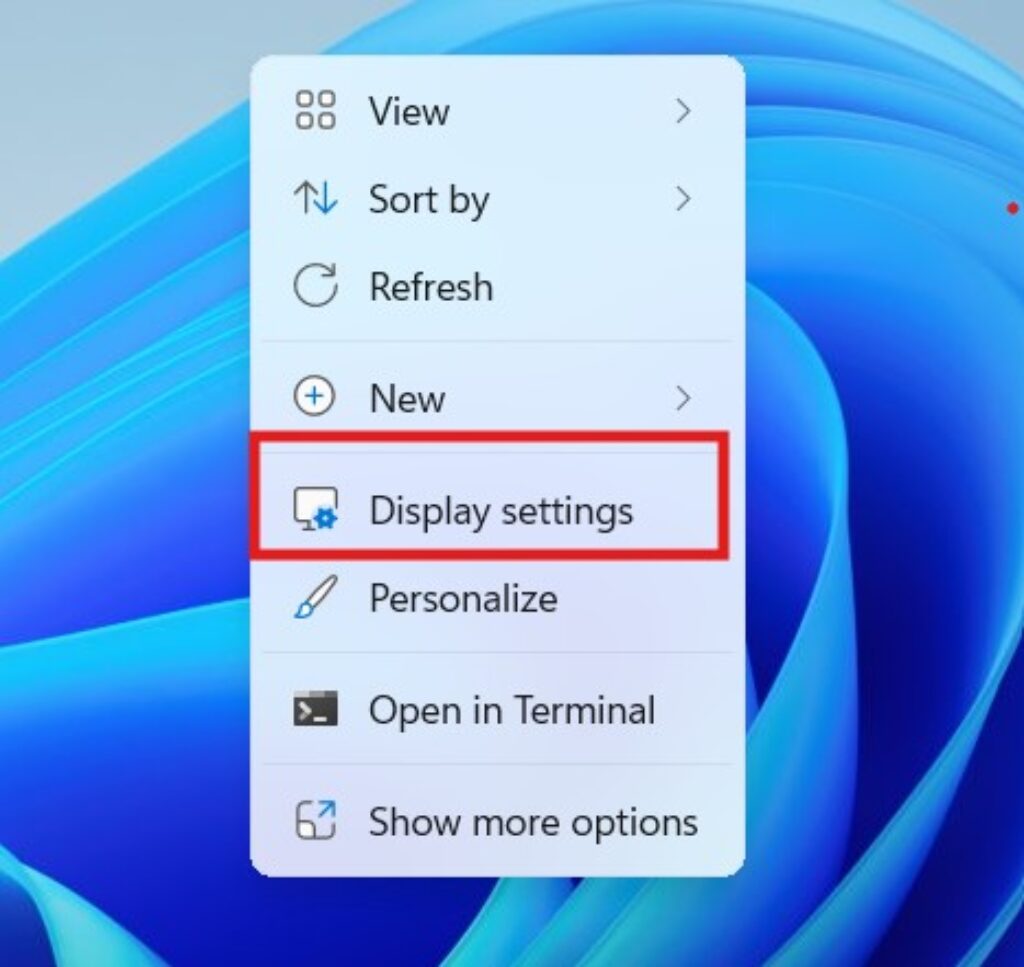
After clicking this option, the Windows Settings app will open automatically and take you directly to the Display Settings page.
Why is this method popular?
This method is the most commonly used because:
- It is very quick.
- No typing is required.
- It works directly from the desktop.
- It is easy for beginners.
Most Windows users prefer this method because it is simple and convenient.
Method 2: Open Display Settings Using the Windows Settings App
Another common way to open Display Settings is through the main Windows Settings application.
The Settings app is the central place where users can manage system preferences, including network, personalization, privacy, and display options.
Steps to open Display Settings using the Settings app
Click the Start menu.
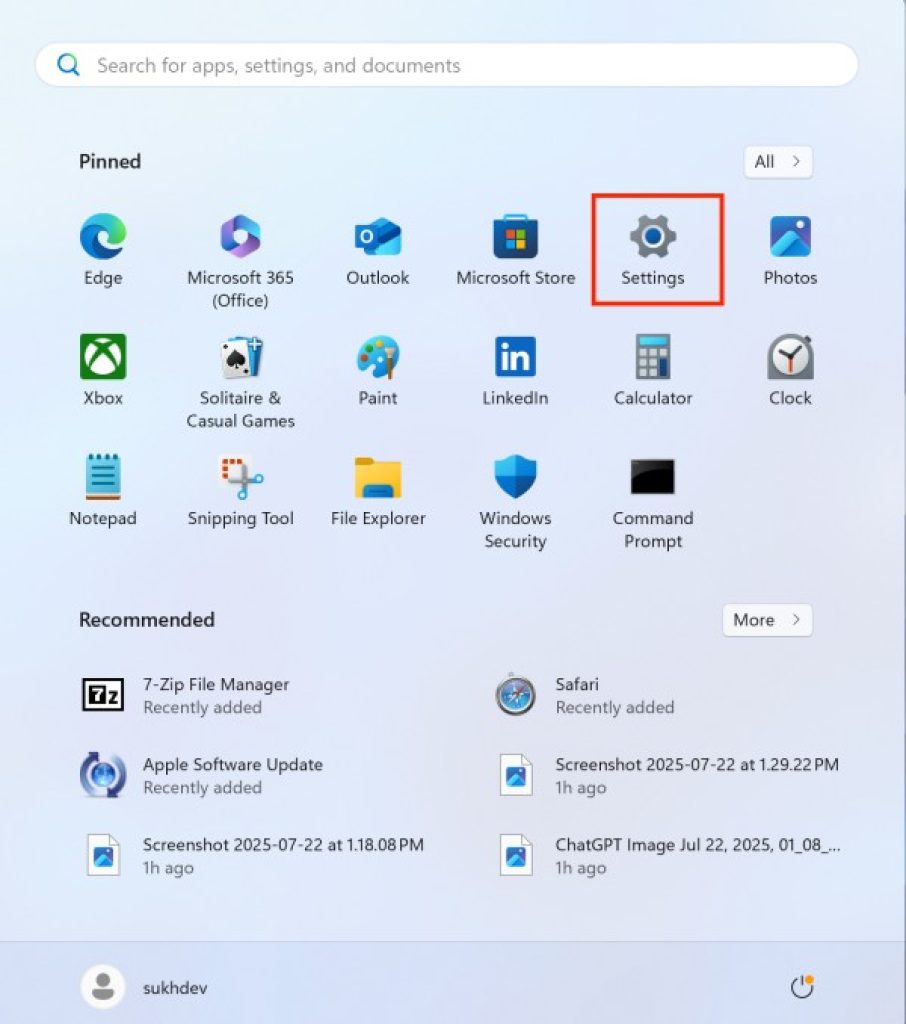
Select Settings.
In the Settings window, click System.

Under System, click Display.

Once you click Display, you will be taken to the display configuration page where all display options are available.
Alternative shortcut
You can open the Settings app quickly using the keyboard shortcut:
Windows + I
Then follow the same steps:
System → Display
Advantages of this method
- Provides access to all system settings.
- Useful when navigating other system options.
- Works even if the desktop context menu is disabled.
Method 3: Open Display Settings Using Windows Search
Windows 11 includes a powerful search tool that allows users to find applications, files, and system settings quickly.
You can use the search feature to open Display Settings instantly.
Steps to open Display Settings using search
- Click the Search icon on the taskbar.
- Type Display settings in the search box.
- Click the Display settings result that appears.
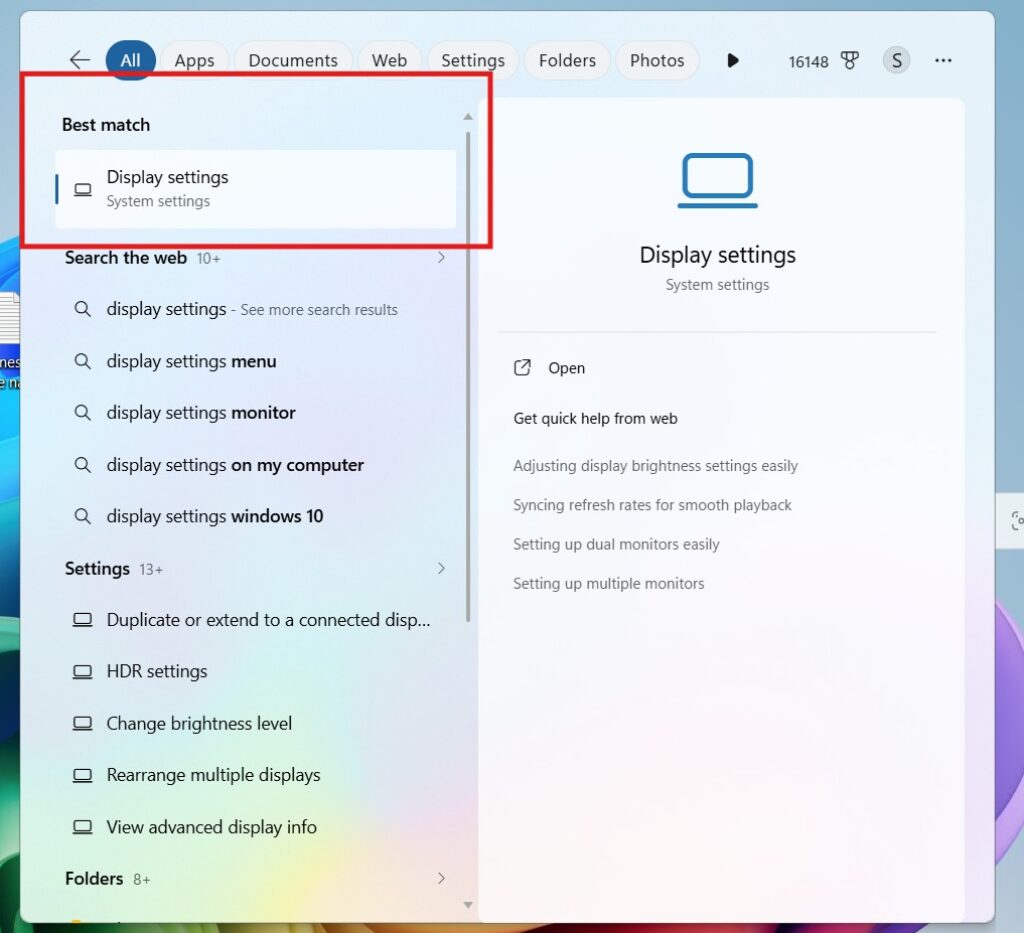
The Settings app will open directly to the Display page.
Why is this method useful
Search is helpful when:
- You cannot find settings manually.
- You want a faster way to open system tools.
- You prefer typing rather than navigating menus.
Many advanced users use Windows Search because it saves time.
Method 4: Open Display Settings Using the Run Command
The Run command allows users to open programs and settings quickly by entering a command.
This method is useful for advanced users or IT professionals.
Steps to open Display Settings using Run
- Press Windows + R on your keyboard.
- The Run dialog box will appear.
- Type the following command:
ms-settings:display
- Press Enter.

After pressing Enter, Windows will open the Display Settings page immediately.
Benefits of using the Run command
- Very fast method.
- Useful for troubleshooting.
- Commonly used by advanced users.
Method 5: Open Display Settings Using Task Manager
Task Manager can also be used to open system settings.
Although this method is not commonly used, it can be helpful when other methods are not working.
Steps to open Display Settings using Task Manager
- Press Ctrl + Shift + Esc to open Task Manager.
- Click File in the top menu.
- Select Run new task.
- Type the command:
ms-settings:display
- Click OK.
This will open the Display Settings page.
Method 6: Open Display Settings Using Command Prompt
Command Prompt can also be used to open Windows settings.
Steps
- Open the Start menu.
- Search for Command Prompt.
- Open it.
- Type the following command:
start ms-settings:display
- Press Enter.
The Display Settings page will open immediately.
Method 7: Open Display Settings Using PowerShell
PowerShell is another command-line tool available in Windows 11.
Steps
- Right-click the Start button.
- Select Windows Terminal or PowerShell.
- Type:
start ms-settings:display
- Press Enter.
Display Settings will open instantly.
What You Can Do Inside Display Settings
Once you open Display Settings, you will see several options that allow you to control how your screen behaves.
Adjust Screen Brightness
Brightness controls how bright or dark the display appears.
Increasing brightness can make the screen easier to see in bright environments, while reducing brightness can reduce eye strain at night.
Change Display Resolution
Resolution determines how sharp the screen looks.
Higher resolutions provide clearer images and text.
Common resolutions include:
- 1920 × 1080 (Full HD)
- 2560 × 1440 (2K)
- 3840 × 2160 (4K)
Windows automatically recommends the best resolution for your monitor.
Change Display Scaling
Scaling controls how large text, icons, and apps appear on the screen.
If items look too small, you can increase scaling to make them easier to read.
Common scaling values include:
- 100%
- 125%
- 150%
- 175%
Change Screen Orientation
Orientation allows you to rotate the screen.
Available options include:
- Landscape
- Portrait
- Landscape (flipped)
- Portrait (flipped)
This is useful when using vertical monitors.
Night Light
Night Light reduces the blue light emitted by the screen.
This helps reduce eye strain and improves sleep quality.
You can schedule Night Light to turn on automatically at night.
Multiple Displays
If you connect two or more monitors, Display Settings allows you to manage them.
You can:
- Extend the display
- Duplicate the display
- Show the screen only on one monitor
This feature is useful for multitasking and productivity.
Advanced Display Settings
Windows 11 also includes advanced display options.
These include:
- Refresh rate adjustment
- HDR settings
- Graphics settings
- Color calibration
Advanced settings are useful for gamers, designers, and professionals who require precise display control.
Common Problems When Opening Display Settings
Sometimes users may face issues when trying to open Display Settings.
Here are a few common problems and solutions.
Display Settings not opening
Restart your computer and try again.
Right-click menu not working
Use the Run command or Search method.
Settings app crashes
Run Windows Update or restart the Settings app.
Tips for Managing Display Settings
Here are some useful tips for managing display settings effectively.
- Always use the recommended resolution for best clarity.
- Adjust brightness to reduce eye strain.
- Use Night Light at night.
- Increase scaling if the text appears too small.
- Update graphics drivers for better performance.
Final Thoughts
Display Settings in Windows 11 play an important role in customizing how your screen looks and behaves. Whether you want to adjust brightness, change resolution, rotate your screen, or configure multiple monitors, the Display Settings page provides all the tools needed to manage your display.
The good news is that Windows 11 offers several ways to open this menu, making it convenient for both beginners and advanced users. The most common method is simply right-clicking on the desktop and selecting Display Settings, but you can also access it through the Settings app, Windows Search, Run command, Command Prompt, PowerShell, or Task Manager.
Learning these different methods ensures that you can always access display configuration options whenever needed. It also helps improve your productivity because you can quickly adjust screen settings depending on your environment or work requirements.
If you frequently change monitor setups, connect external displays, or customize visual settings for better comfort, knowing how to open Display Settings efficiently will make managing your Windows 11 experience much easier.
By using the methods explained in this guide, you will always have quick access to display customization tools and can easily optimize your screen for clarity, comfort, and productivity.