Windows 11, like previous versions of the operating system, relies heavily on the Windows Registry—a central database that stores crucial system settings, application configurations, and user preferences. Over time, the registry can become cluttered with outdated, broken, or leftover entries from uninstalled software, driver updates, and system tweaks. While these entries don’t always cause visible problems, they can lead to performance issues, system errors, or even application crashes in some cases.
Cleaning the registry can help restore order and efficiency to your system, but it must be done with caution. Unlike clearing browser cache or temporary files, modifying the registry comes with risks, as incorrect changes may damage the operating system. That’s why it’s important to understand how to clean the registry safely using trusted tools or step-by-step manual methods.
Why Clean the Registry in Windows 11?

The Windows Registry is a critical part of the operating system. It acts like a central hub, storing information about system settings, hardware, installed applications, user preferences, and more. Over time, as you install, update, and uninstall programs, the registry can accumulate unnecessary, broken, or outdated entries.
These leftover entries don’t always harm your system, but they can lead to:
- Slower performance – A bloated registry may slightly increase the time it takes for your system to read essential settings during startup or while launching programs.
- Application errors – Leftover or corrupted entries from uninstalled software can cause programs to behave unpredictably or fail to launch.
- System instability – Invalid registry entries may result in random error messages, system freezes, or crashes.
- Driver or hardware issues – Improper registry configurations can affect how your hardware interacts with Windows.
- Cleaner uninstalls – Removing unused entries helps ensure that uninstalled software is completely removed from your system.
Cleaning the registry is not about boosting performance overnight, but about maintaining a healthy, stable system. It’s especially helpful after uninstalling large or outdated software, encountering frequent software issues, or when troubleshooting persistent Windows errors.
Important Precautions Before Cleaning the Registry
Before making any registry changes, follow these safety tips:
- Create a System Restore Point
- Back up the entire registry
- Use trusted software — avoid unknown or sketchy tools
- Don’t delete entries unless you know what they do
- Avoid unnecessary registry cleaning if your PC is working fine
Method 1: Clean Registry Manually Using Registry Editor
Manual cleaning is not recommended unless you’re experienced. But if you want to remove leftovers of uninstalled programs, here’s how to do it carefully.
Step 1: Open Registry Editor
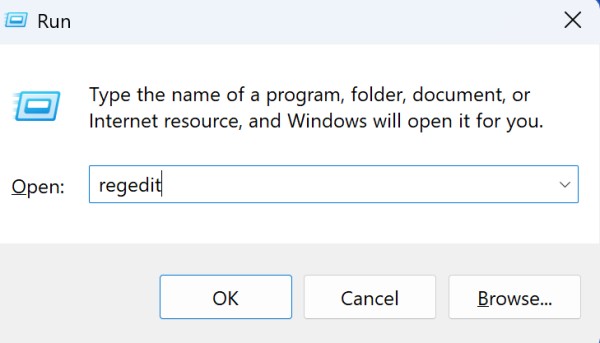
- Press Win + R, type
regedit, and press Enter. - Click Yes if prompted by User Account Control (UAC).
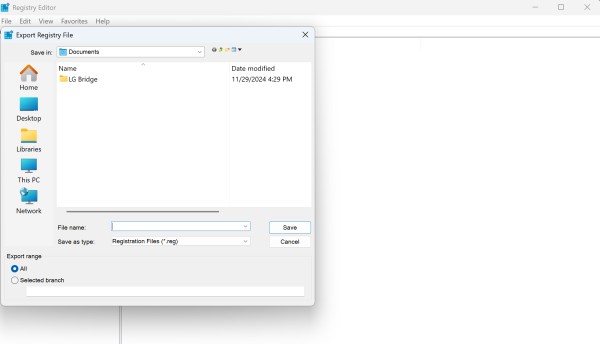
Step 2: Backup the Registry
- In Registry Editor, click File > Export.
- Choose All under Export range.
- Save the file to a safe location.

Step 3: Navigate to Unused Software Keys
For example, if you want to remove remnants of an uninstalled program like VLC:
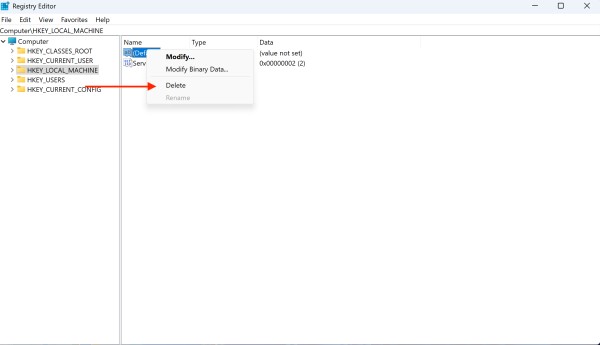
- Go to:
HKEY_LOCAL_MACHINE\SOFTWARE\ HKEY_CURRENT_USER\Software\ - Look for a folder with the program name, e.g., “VideoLAN.”
- Right-click and delete it only if you’re sure the program is uninstalled.
Step 4: Search for Residual Entries
- Press Ctrl + F in Registry Editor.
- Type the name of the uninstalled software.
- Delete only the relevant entries.
Note: Deleting the wrong entry can cause apps or Windows features to malfunction.
Method 2: Use Built-In Tools for Cleaning

Windows doesn’t offer a direct registry cleaner, but you can use built-in tools to clean up indirectly.
Use Disk Cleanup
- Press Win + S, type Disk Cleanup, and open it.
- Select C: drive.
- Check items like:
- Temporary files
- Windows update cache
- System error memory dump files
- Click OK to clean.
While Disk Cleanup doesn’t touch the registry, it removes junk files that sometimes contribute to registry errors.
Also Read: How to Use Disk Cleanup in Windows 11
Method 3: Clean Registry Using Third-Party Software
The safest and easiest way to clean the registry is using trusted third-party tools. Here are some of the best:
1. CCleaner (by Piriform)
How to use:
- Download and install CCleaner from https://www.ccleaner.com
- Go to Registry > Scan for Issues
- Click Fix selected Issues
- Choose to back up changes
2. Wise Registry Cleaner
Steps:
- Download from https://www.wisecleaner.com
- Run Scan and review the list
- Click Clean
3. Auslogics Registry Cleaner
How to use:
- Download from https://www.auslogics.com
- Launch and scan registry
- Review and clean safely
Tips for Safe and Effective Registry Cleaning
- Back Up First: Always back up the registry before making changes.
- Avoid Daily Cleaning: Over-cleaning does more harm than good. Once a month is sufficient.
- Uninstall Programs Properly: Use the official uninstaller to reduce leftover registry data.
- Use Tools with Backup: Only choose registry cleaners that create backups.
- Don’t Use Multiple Cleaners: Stick to one trusted tool to avoid conflicts.
What to Do If Something Breaks After Cleaning
If your system becomes unstable:
- Use System Restore: Press Win + R → type
rstrui→ follow prompts to roll back. - Restore Registry Backup:
- Open Registry Editor
- Go to File > Import
- Select your backup
.regfile
- Boot in Safe Mode and uninstall the registry cleaner you used
Frequently Asked Questions (FAQs)
Is it safe to clean the registry in Windows 11?
Yes, if done correctly using trusted tools and creating backups beforehand. Avoid random registry tweaks or cleaners from unknown developers.
Does Windows 11 have a built-in registry cleaner?
No. Windows 11 does not have a built-in registry cleaner. You must use third-party software like CCleaner or manually edit the registry (not recommended for beginners).
Will cleaning the registry speed up my PC?
It might, but don’t expect dramatic changes. Registry cleaning helps resolve small errors or remnants from old software but isn’t a magic fix for performance issues.
How often should I clean my registry?
Once every 1–2 months is fine for general maintenance. Only clean more frequently if you’re constantly installing and uninstalling programs.
Final Thoughts
Cleaning your registry in Windows 11 can help tidy up leftover entries and fix small system errors, but it must be done with care and precision. Manual registry cleaning is risky and best left to experienced users. For most people, trusted third-party tools like CCleaner or Wise Registry Cleaner offer a safer, faster, and easier approach.
However, registry cleaning isn’t a performance booster by default. Modern PCs and operating systems are smart enough to manage registry files effectively. Only clean your registry when you’re troubleshooting issues like failed uninstalls, application conflicts, or random error messages.
Remember to always create a backup, use one cleaner at a time, and avoid unnecessary tweaks. Registry cleaning is just one part of system maintenance — combine it with disk cleanup, malware scans, and software updates for optimal performance.